








Resources
Accessing Windows Domain CSC from home
Faculty and Staff may be able to access the CSC Domain under Windows from home if the following criteria are met:
- they are using a CS department-owned machine running Windows
- it has been set up by Lab Staff for home use by that Faculty or Staff member
- Lab Staff have reviewed the security environment and given approval
Note that CCIT's VPN software must be used for this to work (see VPN Installation and Use).
Add Home Computer to Domain
email lab with the name of your home computer so it can be added to Active Directory. To display the name of your computer, right-click on My Computer and select Properties to display System Properties, then click the Computer Name tab.
Once lab has added your computer to Active Directory, you need to change the Domain on your computer:
- right-click on My Computer and select Properties
- click the Computer Name tab
- click the Change... button
- click on the Domain radio button
- Enter win.cs.arizona.edu in the Domain box
- click OK
- If successful, you will see a message "Welcome to the win.cs.arizona.edu domain" - click OK.
- Then you'll see a message "You must restart this computer for the changes to take effect" - click OK.
- click OK to close the System Properties dialog
- click Yes to restart your computer
Enable VPN at Logon
In order to logon to the CSC Domain, the VPN link must be established first. This is done by setting the properties of the VPN Dialer:
StartPrograms
University of Arizona VPN Client
VPN Dialer
Options
Windows Logon Properties
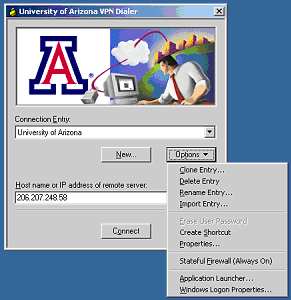
Check the "Enable start before logon" box and click OK
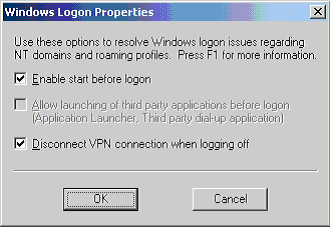
Finally, Log Off your computer.
Logging on to CSC Domain
With the VPN enabled at logon, the VPN Dialer's connect screen will be displayed over the top of the Windows Logon screen. Click Connect to establish the VPN link. Once connected, enter your CS username and password; then type in or select CSC in the "Log on to:" box (if this is not displayed, then click the Options tab). Then click OK to log on.
When through accessing the CSC Domain, simply Log Off. You can then log on to your computer with your local username and password by selecting your computer in the "Log on to:" box.
Last updated May 5, 2008, by John Luiten
Send questions about this page to