Create a New Problem (watch)
tutorial:
step-by-step instructions (text only):
Explore a STEM topic of interest.
- For ideas and sites, check out
the "learn" page in the TO app.
Create a new problem.
- Contract a problem by domain. The value of the contract depends on the current number of
published problems for each domain.
- You may have a maximum of 20 open contracts.
- Upon completing your contract (submitting and approval) you
will then have the option of selling for publication.
- At that time you
can choose to sell for the contract points, market value, or wait for a
future opportunity.
- Draft an open-response problem
and answer. For samples see the "solve" page in the app.
- Give your problem an appropriate title (number sequenece or topic)
- Your problem should be based on scientific facts. Cite the source - url or text you referenced.
- Your answer should be correct and precise.
- Answers can be numeric or text.
- The answer a solver types must match what you define as the
answer.
- Spelling counts. Try to keep the answer straightforward.
More problem styles will be available soon.
- Fractions should be entered "1/2" or mixed numbers
"5<space>3/8"
- Units are optional. If your
question asks to convert pounds to kilograms, fill in the symbol "kg"
or word "kilograms" in this field.
- Use "preview" to see how your problem looks to someone solving it.
- "save" often!
- Create two feedback hints that can help a
user solve the problem. You can give hints that are specific or generic.
- Find or create an image to enhance your problem. Acceptable
file types are .jpg, .gif, .svg, .png.
- Take a picture with
your phone, camera, or Flip Video.
- Take a screenshot (Jing
is a free tool that allows quick screenshots with a few easy features,
like text, boxes, highlight or arrows before saving as a .png)
- Create one with a program and save it to your computer.
- Search for a
Creative Commons (CC) image,
- Click "browse" and select the saved item.
- Fill in the attribution - who made the item. If it's original, put your name.
- If you know the CC license, include it.
- If there is a url where you found the item, include it.
- Create or find a help item that will assist the user in
solving your problem. Upload using the
"help item" button.
- Create
an original
video using the Flip Camera or other tools.
- Acceptable file formats are .mp4, .m4v, .f4v or .flv
- Create
a slideshow
using a presentation program.
- Save the PDF version to your computer and
upload. The app will convert it to the proper format.
- Click "browse" and select the saved item.
- Fill in the attribution - who made the item, if it's original, put your name.
- If you know the CC license, include it.
- If there was a url where you found the item, include it.
- Share your problem with your TO group - starts a discussion thread that includes a link to preview your problem
- OR just submit it to your mentor for approval. Opening comment is optional.
After you submit your problem
Check out the "account" page:
- Click the chat bubbles to check for a message from your mentor regarding the problem.
- if denied - the status will change from "review" to "contracted"
- Read the comment from your mentor by clicking the chat icon or history button inside the edit problem screen.
- $ and status "approved" means you can decide to sell your problem for publication.
- sell for original contracted value
- sell for current market value
- or wait for a future opportunity to publish
- status
"published"
- Your problem appears on the solve page, you can preview it there but cannot solve your own problem for points.
- Each time it is solved by a different user, you earn royalties.
- facebook icon allows you to share on your Facebook wall that you've
published another problem to Teach Ourselves.
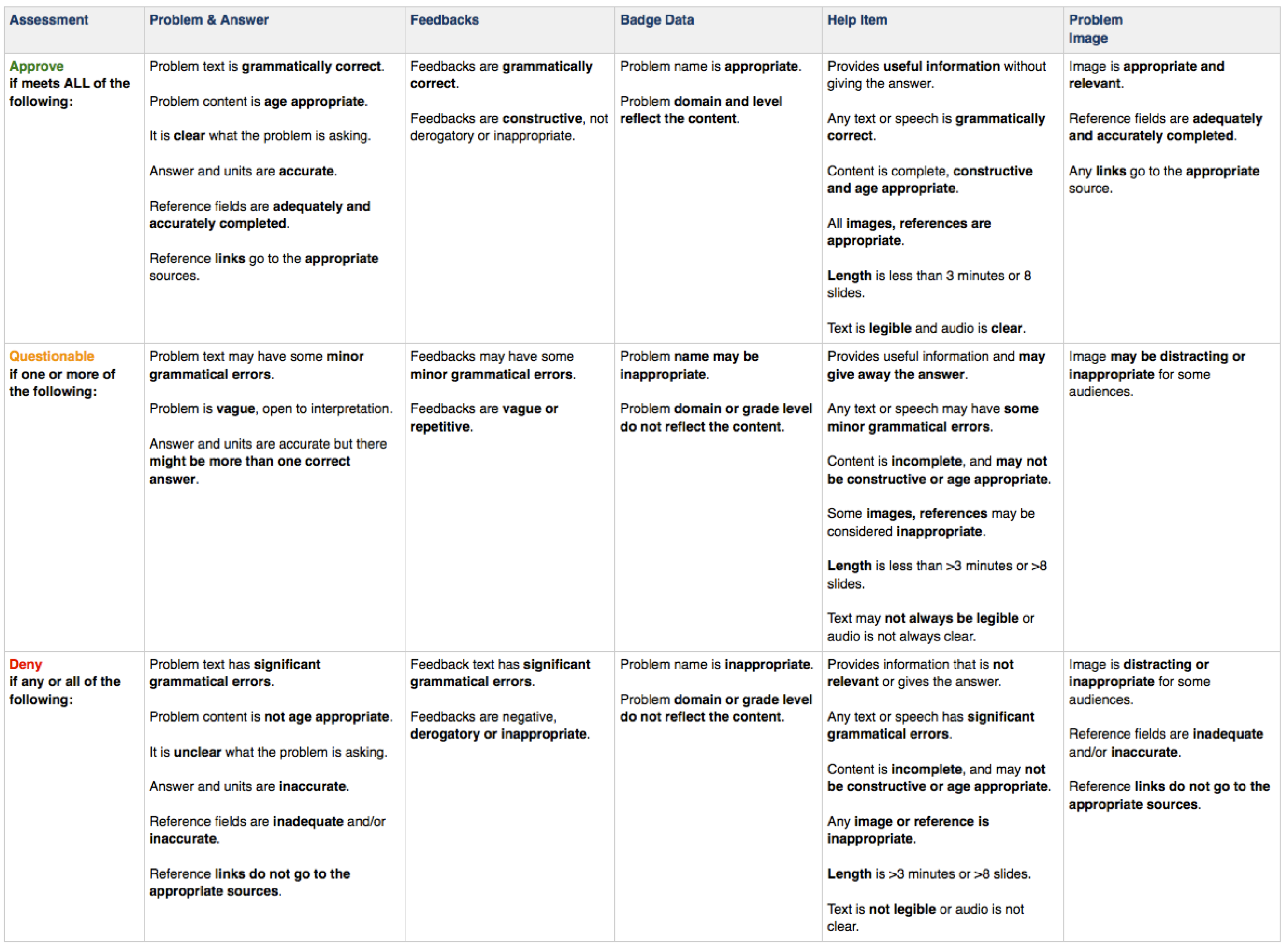
problem approval rubric
download pdf version